
Want to finally get rid of Wi-Fi dead zones and stop buffering during your most important calls and streams?


Quick verdict
You’ll like the TP-Link Deco X55 AX3000 WiFi 6 Mesh System if you want simple setup, solid whole-home coverage, and modern Wi‑Fi 6 performance without the complexity of enterprise gear. It replaces your router and extender with a two-pack mesh that’s easy to manage, supports many devices, and gives you useful security and parental controls through the Deco app.
TP-Link Deco X55 AX3000 WiFi 6 Mesh System - Covers up to 4500 Sq.Ft, Replaces Wireless Router and Extender, 3 Gigabit Ports per Unit, Supports Ethernet Backhaul, Deco X55(2-Pack)
$129.99 In Stock
Product overview
You’re looking at the TP-Link Deco X55 AX3000 WiFi 6 Mesh System – Covers up to 4500 Sq.Ft, Replaces Wireless Router and Extender, 3 Gigabit Ports per Unit, Supports Ethernet Backhaul, Deco X55 (2-Pack). The system is aimed at homes that need consistent coverage across multiple rooms and devices, offering Wi‑Fi 6 speeds, wired connectivity, and a mesh approach that keeps devices connected as you move through the house.
What’s included in the box
You’ll find a straightforward set of components that get you online quickly and replace both your router and extenders without fuss.
- Two Deco X55 units
- Power adapters for each unit
- One Ethernet cable (sometimes included; check your package)
- Quick installation guide and warranty info
If anything’s missing when you open the box, you can usually request support or replacements through TP‑Link support channels.
Key features at a glance
This section gives you a condensed look at what matters most, so you can judge whether the Deco X55 fits your needs.
| Feature | What it means for you |
|---|---|
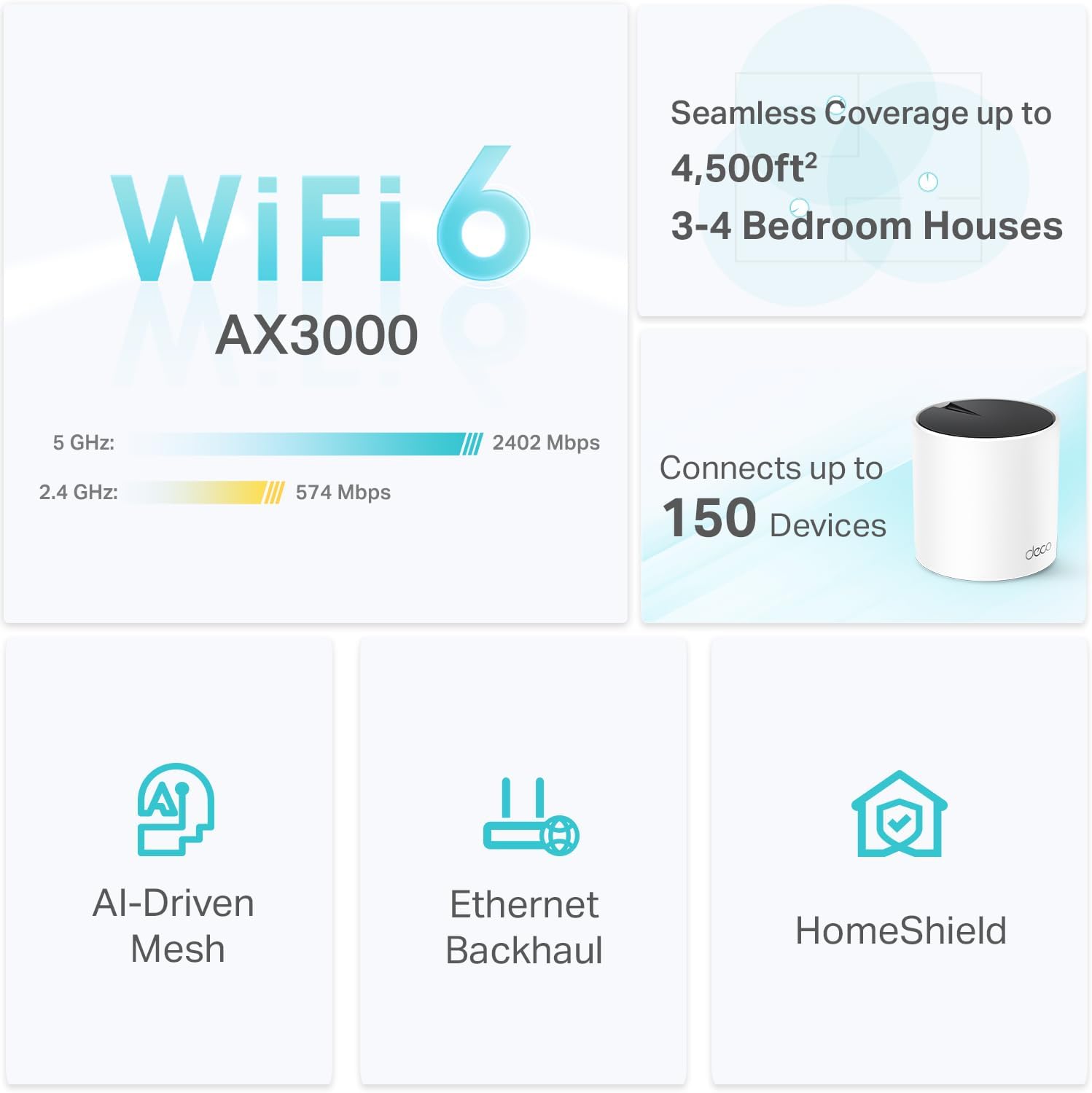
| Wi‑Fi 6 (AX3000) | Faster multi-device performance, better efficiency, and improved range compared to Wi‑Fi 5 |
| Coverage up to 4500 sq.ft (2‑pack) | Two units are designed to blanket a medium-to-large home, reducing dead zones |
| Connects up to 150 devices | Great for smart homes, many phones, tablets, streaming devices, and IoT gadgets |
| 3 Gigabit Ethernet ports per unit | You can wire to multiple devices or use Ethernet backhaul for improved speed |
| Supports Ethernet Backhaul | If you run Ethernet between units, you’ll get more stable throughput and lower latency |
| AI-driven mesh | System optimizes how units communicate to keep performance high |
| TP‑Link HomeShield | Basic security, parental controls, and QoS help you manage and protect your network |
| Deco app setup | Guided setup and remote management via your phone make maintenance simple |

Technical specifications (summary table)
This table gives a technical snapshot you can use to compare with other options quickly.
| Spec | Details |
|---|---|
| Model | Deco X55 (2-pack) |
| Wi‑Fi standard | Wi‑Fi 6 (802.11ax) |
| AX speed | AX3000 (2402 Mbps on 5 GHz (2×2/HE160) + 574 Mbps on 2.4 GHz (2×2)) |
| Coverage | Up to 4500 sq.ft (with 2 units) |
| Devices supported | Up to 150 devices |
| Ethernet ports | 3 × Gigabit LAN/WAN per unit (6 total in 2-pack) |
| Backhaul | Supports wired Ethernet backhaul |
| Security | HomeShield (basic features included) |
| App | TP‑Link Deco app (iOS / Android) |
| ISP compatibility | Works with most ISPs; modem required in many setups |
| Dimensions | (Refer to box/manual for exact dimensions) |
| Mesh technology | AI-driven mesh with fast roaming |
Design and build
The Deco X55 opts for a compact, understated look so it fits comfortably in most rooms without drawing attention. You’ll notice a small footprint and neutral color that blends with home decor.
Each unit is plastic but feels sturdy enough for typical home use. Ports are at the back for a tidy setup, and ventilation is adequate to keep things cool under normal loads. If you plan to stack or place units in tight spots, check the vents to avoid blocking airflow.
Physical ports and LEDs
You’ll find three Gigabit Ethernet ports on each unit, plus power input and a reset button. The LED on the front gives a quick status indication so you can tell if the unit is up, connecting, or facing problems.
Having three ports per unit gives you flexibility: one can be the WAN port, while the others can serve wired clients, or you can repurpose them for backhaul if you prefer.
Coverage and real-world performance
TP‑Link rates the Deco X55 2‑pack to cover up to 4500 sq.ft, but real-world coverage depends on layout, building materials, and interference. In a typical two-story home with drywall and moderate furniture, you’ll likely see most of the advertised coverage. In homes with thick walls, tile, or multiple floors with concrete, your range may be reduced.
You’ll experience better coverage than single routers or simple extenders because the mesh units share traffic intelligently to maintain a stable connection. If you have a particularly large or uniquely shaped house, adding another Deco unit can extend coverage further.
Throughput expectations
On the 5 GHz band with Wi‑Fi 6 devices, you’ll see the best throughput, particularly for near‑range devices. The AX3000 classification (2402 Mbps + 574 Mbps) represents theoretical maximums; your real speeds will be lower, influenced by your ISP plan, device capabilities, and network conditions.
If you stream 4K video, game online, or host video calls while others stream, the Deco X55 should keep things smooth for most homes, especially with wired backhaul or when many devices are Wi‑Fi 6 capable.
Device capacity and multi-device environments
The Deco X55 is rated to handle up to 150 devices, which covers most modern homes with multiple phones, tablets, laptops, smart TVs, security cameras, and IoT devices. You’ll appreciate the efficiency improvements of Wi‑Fi 6—OFDMA and MU‑MIMO help reduce congestion when many devices need small chunks of bandwidth.
If your home is outfitted with dozens of cameras and high-bandwidth devices, monitor performance and consider placing high-demand devices on Ethernet where possible.

Wired connectivity and Ethernet backhaul
Each Deco X55 unit has three Gigabit Ethernet ports, giving you six total in the 2‑pack. You can connect wired clients such as PCs, game consoles, or smart TVs directly to these ports for lower latency and steady throughput.
If you run Ethernet between units, enable wired backhaul to significantly improve inter-node speeds and reduce wireless overhead. Wired backhaul effectively turns the mesh into a high-performance system for latency-sensitive tasks like online gaming or video conferencing.
Use cases for Ethernet backhaul
If you have pre-wired Ethernet in your home or can run cables, wired backhaul is ideal. Use it when:
- You need the lowest possible latency.
- You have many high-bandwidth devices in different rooms.
- You want to isolate Wi‑Fi for clients while keeping backhaul stable.
AI-driven mesh and roaming behavior
The Deco X55 uses AI-driven mesh technology that learns the network environment and optimizes the performance between units. For you, this means the system can adapt to interference and traffic patterns so devices are steered to the best node.
Roaming is seamless. When you move around your home, your device will switch to the strongest Deco unit with minimal disruption, and in many cases you won’t notice the change during streaming or calls.
Setup and management with the Deco app
The Deco app simplifies setup with step-by-step visual guidance, so you can get the system running within minutes even if you’re not tech-savvy. You’ll create a Deco account (or use an existing TP‑Link account), name your network, and choose basic settings via the app.
Once setup is complete, you can use the app to view connected devices, prioritize traffic, set parental controls, run speed tests, and manage security features. Remote management means you can check or change settings even when you’re away from home.
App experience and features
The Deco app is generally easy to navigate and well laid out. You’ll find options like:
- Quick setup wizard
- Connected devices list
- Speed test tool
- HomeShield security tools
- Parental controls and scheduling
- Guest network creation
If you prefer minimal configuration, the defaults are sensible; if you like to tweak settings, the app provides necessary controls without overwhelming you.
Security and privacy: TP‑Link HomeShield
HomeShield provides built-in security features to protect devices on your network. You’ll get basic network protection at no extra cost, which includes malware blocking, malicious site detection, and some intrusion prevention measures.
Paid upgrades to HomeShield unlock additional features such as advanced threat protection, detailed reports, and more granular controls. For many households, the included basic features will be enough to provide a safer browsing experience for family members.
Data handling and privacy considerations
TP‑Link participates in secure-by-design pledges and emphasizes cybersecurity in its development processes. You should still use strong passwords, keep firmware updated through the app, and enable any available two-factor options for your TP‑Link account to keep access secure.

Parental controls and quality of service (QoS)
Parental controls let you create profiles for family members, apply content filters, and set time limits or schedules. You’ll find blocking for categories of sites and the ability to pause internet access for specific profiles—handy for managing screen time and bedtime routines.
QoS options allow you to prioritize devices or types of traffic. If you want to ensure a work laptop gets priority during a video call, you can set that up through the Deco app and reduce interruptions from streaming or downloads on other devices.
Compatibility and ISP support
The Deco X55 works with virtually all major ISPs like Comcast, Spectrum, Verizon, AT&T, Xfinity, Cox, CenturyLink, and more. Keep in mind most ISPs require a modem, so you’ll either use your ISP’s modem or a third-party modem in bridge mode to connect the Deco.
If you’re replacing a gateway provided by your ISP, check whether your ISP requires specific configurations or if you need to contact them for activation when moving to your own router.
Real-world testing scenarios
In practice, you’ll see the best experience when at least some devices support Wi‑Fi 6. Here are common scenarios and expected outcomes:
- Single family with 3–5 heavy users (4K streaming, video calls): Smooth performance with minimal buffering, particularly on 5 GHz.
- Smart home with many IoT devices: Devices with low bandwidth needs will coexist comfortably thanks to OFDMA and MU‑MIMO.
- Gamers and streamers: Low latency is achievable, especially when devices are wired or when you use Ethernet backhaul.
- Large house with thick walls: You may need an extra Deco unit or wired backhaul to achieve consistent coverage in far corners.
Comparison with similar options
You’ll find multiple mesh systems at different price points. The Deco X55 positions itself as a mid-range Wi‑Fi 6 mesh with flexibility and strong device capacity.
If you compare against cheaper dual-band Wi‑Fi 5 mesh systems, you’ll notice speed and efficiency improvements. Against premium tri-band systems, the X55 provides better value for many homes because tri-band offers dedicated backhaul but at higher cost.
When to choose something else
Consider a different option if:
- You need ultra-high concurrent throughput across many high-bandwidth clients (consider tri-band systems).
- You want advanced enterprise features like VLANs, deep packet inspection, or advanced VPN servers (look at more advanced consumer or prosumer routers).
Pros and cons
You’ll want a concise summary of strengths and limitations to decide quickly.
Pros:
- Easy setup and management via Deco app
- Good coverage for most homes (up to 4500 sq.ft for 2‑pack)
- Supports up to 150 devices, suitable for smart homes
- 3 Gigabit ports per unit and Ethernet backhaul support
- Wi‑Fi 6 performance for modern devices
- Built-in HomeShield basic security and parental controls
Cons:
- Performance depends on device capabilities and home construction
- Advanced users may find settings somewhat limited compared to custom firmware routers
- Premium security features require HomeShield subscription for full protection
Placement and optimization tips
To get the best results, you’ll want to place Deco units strategically:
- Put the main Deco near your modem and central to other nodes.
- Place secondary units halfway between the main unit and the farthest devices you want to cover.
- Avoid placing units behind large metal objects, inside cabinets, or next to thick walls when possible.
- If you can run Ethernet between units, do so to enable wired backhaul for sustained throughput.
Small adjustments in placement can yield noticeable improvements in coverage and speed, so try a few positions if you get unexpected dead spots.
Troubleshooting common issues
If you run into problems, here are practical steps to try:
- Check cabling and power: Ensure the modem and Deco are powered and cables are secure.
- Reboot devices: Restart the modem and Deco units to clear temporary glitches.
- Update firmware: Use the Deco app to check for updates and apply them.
- Run app diagnostics: The Deco app includes a speed test and device list—use these to identify bottlenecks.
- Factory reset if necessary: If an issue persists and support suggests it, back up settings and reset to factory defaults.
If you still need help, TP‑Link support and community forums often provide targeted assistance for specific issues.
Advanced usage and networking tips
If you want to push the system further, consider:
- Enabling wired backhaul for multi-room gaming and streaming.
- Using QoS to prioritize work devices during business hours.
- Isolating IoT devices on a guest network if you’re concerned about security.
- Registering for HomeShield premium if you want advanced protection and parental control features.
For power users, bear in mind this system prioritizes ease of use over deep customization; it’s excellent for most households but not designed as an enterprise router.
Who this product is best for
You’re likely to be satisfied if:
- You need reliable whole-home Wi‑Fi without technical complexity.
- Your household has many devices (smartphones, tablets, smart TVs, cameras) and you want better performance.
- You want a mesh system that replaces both router and extenders with a single, manageable ecosystem.
- You value having wired ports for consoles, desktop PCs, or network-attached storage.
You might look elsewhere if:
- You need enterprise-grade control and deep network customization.
- You have an extremely large home and want built-in tri-band dedicated backhaul without running cables.
Final recommendation
If you prioritize easy setup, consistent coverage, and modern Wi‑Fi 6 performance for a typical smart home, the TP‑Link Deco X55 AX3000 (2‑pack) is a strong choice. It balances speed, device capacity, and practical features like Ethernet backhaul and parental controls. For most users, it brings a noticeable improvement over older single‑router setups and frees you from juggling extenders.
Frequently asked questions (FAQ)
These short answers address common questions you may have.
Q: Do I need a modem?
A: Yes. Most internet service providers require a modem to connect to the Deco’s WAN port unless your ISP provides a gateway that you can set to bridge mode.
Q: Can any Deco X55 unit work as the main router?
A: Yes. Any unit can be set up as the primary router during installation.
Q: Can I use Ethernet backhaul and still connect wired clients?
A: Yes. If you use one Ethernet port for backhaul, the remaining ports still support wired client devices on that unit.
Q: Is the Deco X55 compatible with mesh units from other Deco models?
A: Generally, TP‑Link Deco units of the same family are compatible, but check TP‑Link’s compatibility notes before mixing different models.
Q: Do I need the paid HomeShield plan?
A: No. Basic HomeShield features are included. Paid plans add advanced security and detailed insights if you want them.
Q: Will firmware updates be automatic?
A: The Deco app notifies you of updates and can apply them; you can usually schedule or approve updates through the app.
Final thoughts
You’ll get a modern, user-friendly mesh that addresses everyday home networking problems: dead zones, device congestion, and complicated setups. The Deco X55 gives you Wi‑Fi 6 improvements, helpful app-based control, Ethernet options that matter for performance, and security features that protect your family. If your home needs better coverage and you want a straightforward solution that grows with your network, this system is worth considering.

Disclosure: As an Amazon Associate, I earn from qualifying purchases.