
Want a single solution that gives you fast, reliable WiFi throughout your home without constant tinkering?


First impressions of Google WiFi – AC1200 – Mesh WiFi Router System Bundle (3-Pack) – 4500 Sq Ft Coverage – Retail Packaging – Easy Setup, Seamless Signal for Smart Home Devices – Snow
When you unbox this 3-pack, you immediately notice how clean and minimal the units look. The Snow finish and small footprint make the routers easy to place in plain sight without creating an eyesore, and the retail packaging includes everything you need to get started quickly.
The design feels like it was made for real homes — unobtrusive, simple, and modern. You’ll appreciate that the product doesn’t try to be flashy; instead it focuses on being practical and reliable for day-to-day use.
Google WiFi - AC1200 - Mesh WiFi Router System Bundle (3-Pack) - 4500 Sq Ft Coverage - Retail Packaging - Easy Setup, Seamless Signal for Smart Home Devices - Snow
$149.95 In Stock
What’s in the box
You’ll find three Google WiFi AC1200 routers, power adapters for each unit, a short Ethernet cable for initial setup, and basic documentation. Everything is packaged to keep things neat and reduce clutter, so setup feels straightforward rather than overwhelming.
Each unit is compact and ready to be placed on a shelf, table, or other elevated surface to optimize signal distribution. There’s no separate satellite that looks different — all three pieces are identical, which makes placement decisions easier if you want a balanced aesthetic.
Quick list of included items
You get three identical WiFi points, three power bricks, one Ethernet cable for the primary router, and simple start-up guides. That’s all you really need for a mesh setup in most homes.
Product specifications (at-a-glance)
Below is a straightforward breakdown of the key specs to help you compare and decide quickly. This table gives you a fast view of the most important details you’ll consider when choosing a home mesh system.
| Specification | Details |
|---|---|
| Product name | Google WiFi – AC1200 – Mesh WiFi Router System Bundle (3-Pack) – Snow |
| WiFi standard | AC1200 (Dual-band 802.11ac) |
| Coverage | Up to 4,500 sq. ft. (3-pack) |
| Units included | 3 identical WiFi points |
| Ports per unit | Typically 2 Ethernet ports (1 WAN, 1 LAN) |
| App management | Google Home app |
| Setup | Simple smartphone-guided setup |
| Parental controls | Yes (via Google Home app) |
| Color | Snow (white) |
| Return policy | 30-day return guarantee (as advertised) |
Design and build quality
You’ll notice how small and understated each unit is, and that’s intentional — the goal is to let you place them in visible areas for best performance without creating an eyesore. The plastic housing feels solid, and the rounded edges give the devices a modern, soft look that fits most home decor.
Because the units are intentionally minimal, they don’t have fancy lights or protruding antennas. That makes them friendly for living rooms, shelves, and even bedrooms where you don’t want bright LEDs or bulky hardware attracting attention. In short, they’re built to be seen and tolerated, not hidden.
Coverage and performance claims
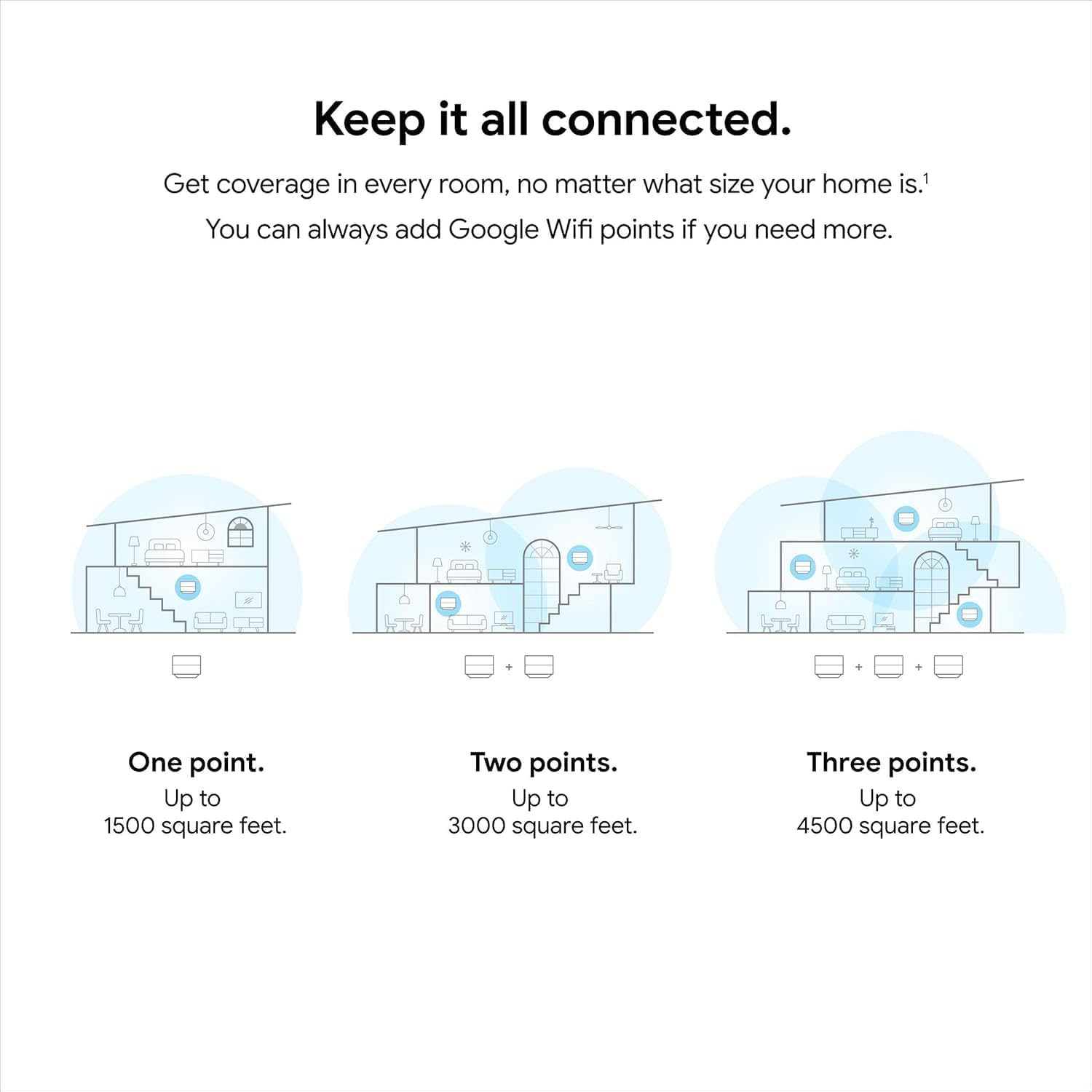
The 3-pack is rated to cover up to 4,500 square feet, which covers most multi-story houses or larger single-floor homes. In practice you’ll get excellent coverage when you place the units thoughtfully — one near your gateway/modem, and the others spaced out to blanket the rest of the house.
Keep in mind that advertised coverage assumes average home construction and typical interference. Concrete walls, metal studs, or many electronic devices nearby can reduce range, so measured performance in real life will depend on your house layout and materials.
Real-world range expectations
You’ll likely see complete coverage in typical homes of 2-4 bedrooms with the three nodes placed on different floors or key zones. Placing one unit in a central location and the others on opposite sides of the living area or upstairs will usually eliminate dead spots.
If your home is unusually large, has complex geometry, or contains lots of RF interference from neighboring networks or devices, you may need to experiment with placement. Powerline extenders or additional mesh nodes could help in those edge cases.
Speed and throughput
As an AC1200 solution, the system is designed for common household tasks like streaming HD and 4K video, web browsing, video calls, and light to moderate gaming. You’ll see consistent throughput for multiple devices when the nodes are within a reasonable distance of each other.
If you have very high-speed internet (300 Mbps or faster) and push many devices at once with heavy loads, the AC1200 class will perform well for most rooms but may not match top-tier WiFi 6 systems under maximum stress. For everyday smart home use, streaming, and general gaming, it should be more than sufficient.

Setup and management with the Google Home app
You’ll set up the mesh system using the Google Home app, which guides you through each step with clear on-screen instructions. The app-driven setup is slick and user-friendly, so you can often have the system running in under 15–20 minutes if you’re comfortable with apps.
Beyond setup, you’ll manage everything from the same app: network name, password, guest networks, prioritization, and parental controls. Having a single place to manage network settings and device permissions makes life easier if you prefer keeping things organized from your phone.
Step-by-step setup experience
After you connect the primary unit to your modem, the app helps you scan a QR code on the unit and walk through naming the network and placing the nodes. The process is intentionally guided so you don’t need advanced networking knowledge.
If you prefer more granular control, the Google Home app focuses on simplicity over deep technical knobs. You’ll get core features and easy management, but you won’t find the advanced firewall or VLAN settings that power users might expect from firmware-focused brands.
App features and parental controls
You can create profiles for family members, pause WiFi on specific devices, set scheduled downtime, and filter content using the parental controls in the app. This makes it easy for you to manage kids’ screen time or keep guest access separate from your main network.
The parental controls are practical and approachable — you’ll be able to quickly assign devices to a user and apply filters or pauses without digging through menus. If you want enterprise-grade content filtering, you may need a dedicated service, but for family use it’s very usable.
Mesh behavior and roaming
You’ll experience seamless roaming between nodes, meaning your devices will automatically switch to the best node while you move around the house. For activities like video calls or streaming music while moving through rooms, the transition is typically smooth and unobtrusive.
Roaming behavior relies on a single SSID for the whole network, and the system uses intelligent algorithms to assign devices to nodes. That means you don’t have to manually connect to different networks as you move, and the system handles client handoffs behind the scenes.
Backhaul and band management
The system uses a shared wireless backhaul between nodes to pass traffic, which is typical for consumer mesh systems. For most households this is fine and delivers a great experience, especially when you place nodes in close enough range to maintain strong links.
If you have heavy throughput needs, wired backhaul (connecting nodes via Ethernet) can provide more consistent performance. The units generally include Ethernet ports you can use for wired backhaul if you want to lock in maximum speed between nodes.
Suitable use cases
You’ll find this mesh system ideal for families, multi-room homes, or spaces where you want a simple, reliable network without fiddly setup. It’s particularly good if you have many smart home devices, multiple streamers, or regular video calls across the house.
Because it blends performance with simplicity, it’s a great pick if you want a network you can set and mostly forget, while still retaining control through a friendly mobile app.
Streaming and 4K video
For streaming multiple 4K streams, the mesh system is capable of supporting several high-bandwidth streams concurrently, especially when nodes are well positioned. You should expect smooth playback in most rooms for services like Netflix, YouTube, or Prime Video.
If you regularly stream 4K in multiple locations simultaneously or combine that usage with heavy downloads, wired connections for high-bandwidth devices (like a smart TV or game console) may yield even better and more consistent results.
Online gaming
You’ll get a responsive gaming experience for casual and competitive play; latency is typically low when your gaming device is connected to the strongest nearby node. For the most latency-sensitive gamers, a wired Ethernet connection to the main router or a node is still the gold standard.
If you’re hosting game nights where multiple consoles are active, the mesh handles multiple sessions well, but you may notice a small improvement if you hard-wire the main gaming devices.
Smart home devices and IoT
This system shines in smart homes because it’s built for handling lots of simultaneous low-bandwidth connections. You’ll be able to keep hundreds of smart bulbs, thermostats, locks, and sensors connected without much hassle.
The single-network approach and smart device prioritization mean your lights and security cameras stay responsive, and you can manage them easily through the same app you used to set the network up.
Security and privacy considerations
You’ll appreciate automated updates that help keep the system patched and secure without your intervention. Google’s mesh solutions generally receive background system updates to fix vulnerabilities and improve performance, which minimizes the maintenance burden on you.
On privacy, Google’s software ecosystem ties into user accounts, so you’ll want to be comfortable with that integration. If you prefer total separation of network management from cloud accounts, that’s something to factor into your choice.
Automatic updates and protections
Automatic updates mean you don’t need to check firmware versions manually and helps maintain security hygiene. Some users appreciate that for the peace of mind it brings; others may want a manual update option — the system prioritizes ease of use.
The platform also offers basic protections like blocking known malicious sites or suspicious traffic patterns as part of its overall security posture. For users demanding enterprise-level protections, a dedicated firewall or security appliance would be needed.
Troubleshooting common issues
If you run into a dead spot, check node placement first: move nodes upward and away from large metal objects, microwaves, and cordless phones. Often a shift of just a few feet or moving a node to a central shelf will dramatically improve connectivity.
If a device won’t connect or drops frequently, reboot the router and the device, then check for app notification messages about network updates. The Google Home app provides diagnostics and guidance that often point you toward the fix.
Dealing with interference and weak links
If you suspect interference from other networks, the app can help you change channels or optimize placement. In denser neighborhoods, shifting nodes and choosing less congested WiFi channels can boost performance.
For persistent weak backhaul links, consider wired Ethernet between nodes. Hardwiring one or more links often stabilizes performance for high-demand homes.
Pros and cons
You’ll like how easy it is to set up, the sleek look, and the comprehensiveness of the 3-pack coverage for most homes. The Google Home interface makes everyday management accessible even if you’re not a networking enthusiast.
On the flip side, power users might miss deeper customization options like advanced QoS tuning, VLANs, or extensive manual firewall rules. If you need those features, you’ll either need a different product or an additional router/firewall that sits behind the mesh.
Comparison with competitors
Compared with similarly priced mesh systems like Eero or TP-Link Deco, the Google WiFi 3-pack is often the choice for people who prefer a clean interface and solid integration with Google services. Eero tends to emphasize modular add-ons and subscription services, while TP-Link Deco sometimes offers more advanced settings for tinkerers.
If you prioritize a balance of ease-of-use, good coverage, and simple parental controls, this Google solution competes well. If you need the very latest standards like WiFi 6 or advanced configuration, competitors that focus specifically on those features could be more suitable.
Value for money
You’ll likely find that the 3-pack represents good value when you consider the coverage and simplicity offered. For a family that values reliability and minimal fuss, the price often matches what you’d expect to pay for a no-nonsense, whole-home mesh system.
If you’re comparing price-per-square-foot or looking for the fastest possible individual node speeds, higher-end or WiFi 6 systems will cost more and offer incremental gains — but for many homes those gains aren’t necessary to meet daily needs.
Who should buy this
Buy this if you want a straightforward, attractive mesh system with robust app management that covers a multi-room or multi-level home. It’s perfect if you prioritize ease of use, stable streaming, and consistent smart home connectivity without needing deep technical configuration.
It’s especially good for families, shared apartments, and small home offices that need consistent performance across many devices and don’t want to fuss with complicated network settings.
Who might want something else
Consider other options if you need the latest WiFi standards (WiFi 6) for future-proofing or you require advanced networking features like VLAN tagging, granular QoS, or enterprise-grade VPN controls. Power users and gamers who demand lowest possible latency and the highest throughput might prefer a wired-first approach or a router that emphasizes advanced manual control.
If you have an extremely large home where more than three nodes are obviously needed, you might evaluate models that allow for easy expansion or consider a system that supports wired backhaul more prominently.
Tips to get the best performance
Place the primary unit near your modem and high up for best distribution. For additional nodes, avoid placing them near thick walls, appliances that emit RF, or metal shelving; instead aim for open sight lines and central positions for each coverage area.
Use wired Ethernet backhaul if you can run cables between nodes, especially when you need stable, high-speed links for gaming or multiple simultaneous 4K streams. Also, update the app and check for firmware updates through it regularly to benefit from ongoing improvements.
Frequently asked questions (FAQ)
You’ll likely wonder if the system supports wired backhaul, how many devices it can handle, and whether it supports guest networks. Most units include Ethernet ports for wired connections and support guest networks and device prioritization via the app.
If you’re curious about advanced features like port forwarding or static IP reservations, the Google Home app supports some of these common tasks, but not the deep configuration that advanced routers provide. For most users, the included options are enough.
Warranty, returns, and support
You’ll have a 30-day return guarantee as advertised, which gives you a trial window to test coverage and compatibility with your home network. Google’s online support resources and community forums can help troubleshoot more persistent or nuanced issues.
If you run into hardware failures outside the return period, check the warranty details listed by the seller and Google’s support to understand repair or replacement paths. Customer support responsiveness and options vary, so keep your purchase documentation handy.
Environmental and practical placement advice
You’ll get better results if you place nodes high and out in the open rather than tucked away in cabinets or behind TVs. Avoid placing nodes on the floor, inside metal enclosures, or near heavy-duty appliances that generate interference.
Consider aesthetics too — the Snow finish makes these units easy to leave out, but you’ll still want to position them so cords are tidy and not running across living spaces. Concealed cable channels or small cable clips can make your setup look clean.
Troubleshooting deeper issues
If you experience device-specific problems, check whether the device firmware or the Google Home app shows known issues or recommended fixes. Resetting a node and re-running the app’s network check can often resolve sticky issues that don’t respond to simple restarts.
If you see persistent throughput degradation, try isolating the problem by connecting a device directly to the modem with Ethernet and running speed tests. This helps determine if the issue is ISP-related or internal to the mesh.
Final verdict
You’ll likely be very satisfied if you want a reliable, attractive, and easy-to-manage mesh system for a typical household. The Google WiFi AC1200 3-pack offers a compelling combination of coverage, simplicity, and everyday performance that suits most families and smart homes.
If your priorities include advanced network customization, the latest WiFi standard, or extreme throughput needs, you may want to compare it against higher-end, feature-rich alternatives. For most people, though, this system hits the sweet spot between functionality and simplicity — giving you a stable network with minimal fuss.

Disclosure: As an Amazon Associate, I earn from qualifying purchases.