
Looking for a single mesh system that can handle dozens of devices, massive coverage, and the newest WiFi 7 features while keeping setup simple?
Buy NETGEAR Orbi 360 WiFi 7 On Amazon
Product overview — NETGEAR Orbi 360 Series Dual-Band WiFi 7 Mesh Network System for Home (RBE363) – Wireless Router + 2 Extenders, Security Features, 5 Gbps, Covers 6,000 sq.ft., 70 Devices, 2.5GB Internet Port, BE5000
You’re looking at a WiFi 7 mesh kit that bundles a router and two extenders to cover large homes and support many active clients. NETGEAR positions this Orbi 360 Series system as a future-proof option with speeds up to 5 Gbps, enhanced backhaul, and built-in security measures that include automatic firmware updates and Advanced Router Protection.
NETGEAR Orbi 360 Series Dual-Band WiFi 7 Mesh Network System for Home (RBE363) – Wireless Router + 2 Extenders, Security Features, 5 Gbps, Covers 6,000 sq.ft., 70 Devices, 2.5GB Internet Port, BE5000
Key specifications
This section gives you a quick, at-a-glance specification list so you can compare features without hunting through marketing text. The following table breaks down the core specs you’ll care about.
| Feature | What it means for you |
|---|---|
| WiFi standard | WiFi 7 (backward compatible with WiFi 6/6E/5/older devices) |
| Max theoretical speed | Up to 5 Gbps (advertised) |
| Bands | Dual-band WiFi 7 with Enhanced Backhaul |
| Coverage | Up to 6,000 sq.ft. (router + 2 extenders) |
| Device capacity | Up to 70 connected devices |
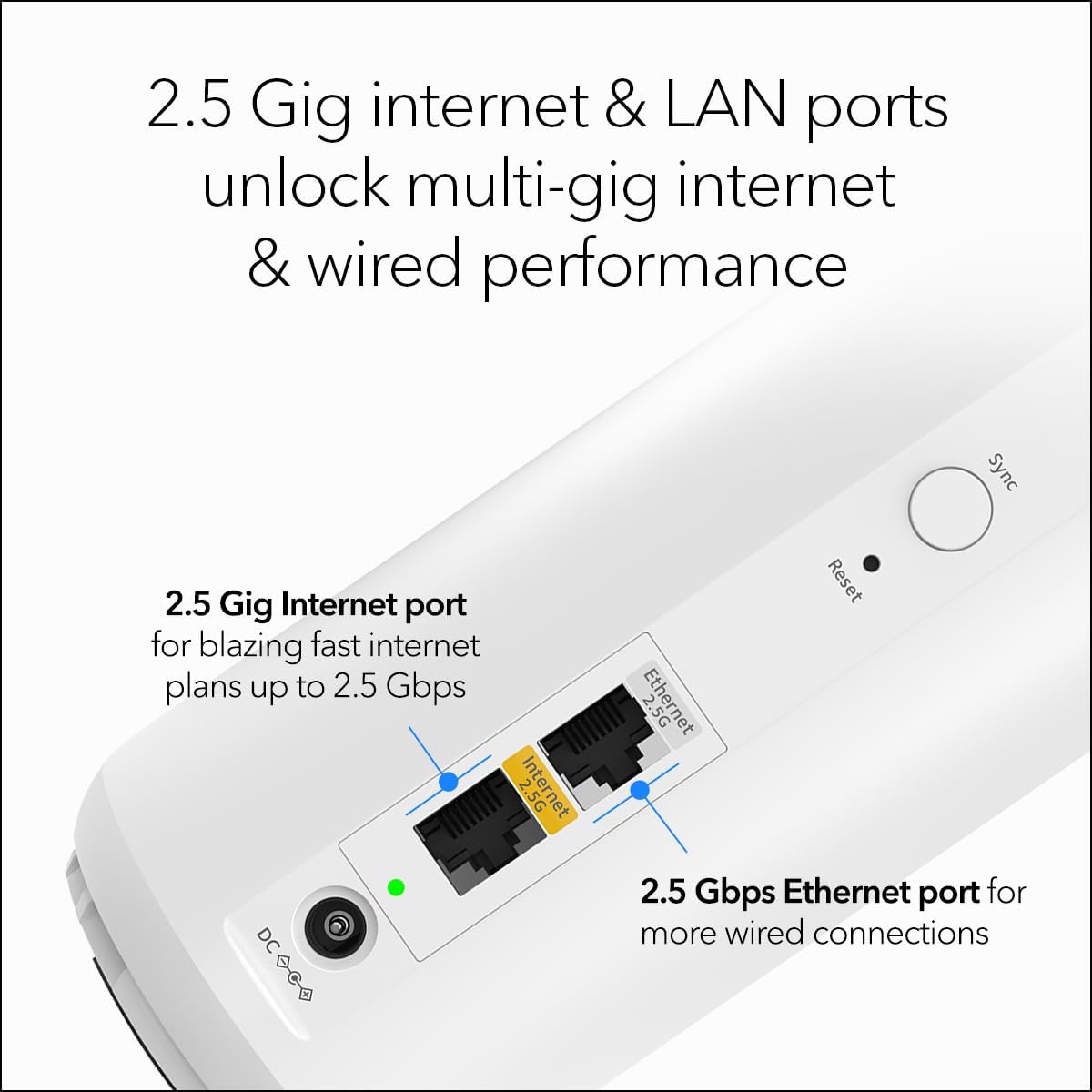
| WAN port | 2.5 Gbps Internet port (for faster-than-1Gbps plans) |
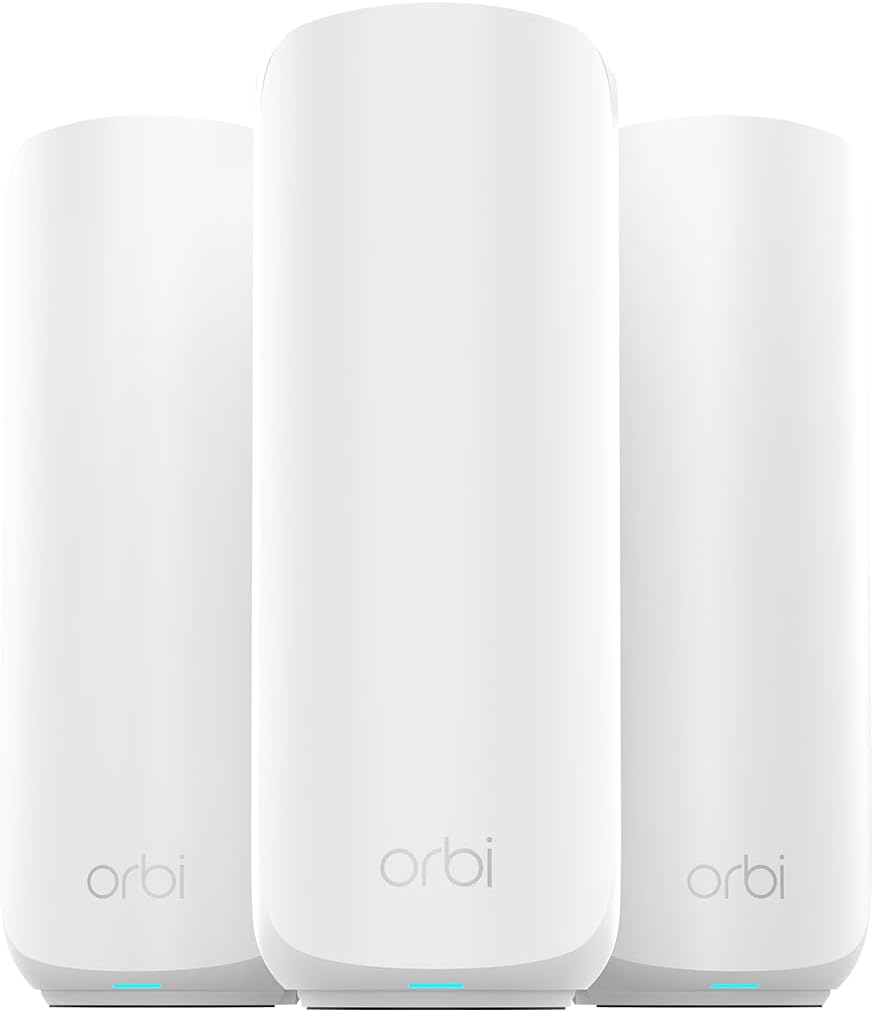
| Mesh configuration | Router + 2 extenders included |
| Security | Automatic firmware updates, Advanced Router Protection |
| Use cases | 4K streaming, video conferencing, gaming, many devices simultaneously |
What WiFi 7 brings to your home
You’ll notice the key selling point is WiFi 7, which upgrades core performance and responsiveness compared with older standards. Expect wider channels and multi-link operation technologies that can reduce latency and increase aggregate throughput for compatible devices.
You should know that not every device will immediately benefit; to fully leverage WiFi 7 enhancements, devices need to support the new standard. But because this Orbi is backward compatible, older phones, laptops, and smart devices will still connect and perform as they normally do.
Design and hardware
NETGEAR keeps Orbi’s aesthetic functional and relatively unobtrusive, so you can place units throughout the house without them drawing attention. The kit includes a central router and two satellite extenders that are designed to synchronize coverage and handoff as you move around.
You’ll find at least one 2.5Gbps Internet port so you can plug in a high-bandwidth ISP connection or a high-speed modem. The presence of a multi-gig WAN port is particularly useful if you’re on a multi-gig ISP plan or want to attach a single device that needs more than 1 Gbps throughput.
Physical placement and size considerations
You’ll want to place the router centrally in your living area and spread the extenders to cover dead zones while keeping them within a reliable signal range of one another. Orbi’s extenders are compact enough for shelves and open counters, but avoid tight enclosed cabinets to preserve airflow and radio performance.
Think about where you do the most streaming and gaming and prioritize wired backhaul options if possible; you’ll get better, more consistent throughput if you can run Ethernet between units.
Shop The NETGEAR Orbi 360 Mesh System
Performance expectations in real homes
NETGEAR advertises up to 5 Gbps, which is an aggregate theoretical limit and depends on client capability, environmental factors, and ISP speed. In practice, you’ll see lower speeds due to wall materials, interference, and device limitations, but you should still notice strong performance for multiple simultaneous 4K streams, video calls, and competitive gaming.
Because the kit supports up to 70 devices, it’s well-suited to busy homes where many users and smart devices are active at once. However, if you have dozens more high-traffic devices (for example, a smart home with many cameras and streamers), you should monitor performance and possibly add wired switches for heavy wired loads.
Realistic throughput factors
You’ll have the best experience when:
- Your devices support modern WiFi features.
- Units are placed to minimize obstacles and interference.
- High-bandwidth devices are wired where possible.
- Firmware is kept up to date.
If you want to squeeze top speeds out of the system, consider upgrading compatible client hardware and using wired backhaul.
Backhaul and mesh behavior
The Orbi 360 Series uses Dual-band technology with Enhanced Backhaul to keep the router and extenders synchronized. That means the system optimizes which band is used to communicate between nodes and which is used for client devices, improving reliability and throughput.
You can typically expect:
- Seamless roaming between nodes for mobile devices.
- Prioritization of critical traffic (streaming/gaming) through intelligent routing.
- Better overall coverage because extenders coordinate channels and handoffs.
If you can run Ethernet between nodes, use wired backhaul for the most consistent performance and lowest latency.
Setup and user experience
Setting up the Orbi 360 is meant to be user-friendly. You’ll follow straightforward steps in the Orbi app or web interface to claim the router, add extenders, and create your SSID and password. The app walks you through initial placement, firmware updates, and basic settings.
Expect the app to offer visual guidance and device lists so you can see what’s connected. For more advanced settings, use the web interface where you’ll find configuration options like port forwarding, DHCP management, and guest network settings.
Quick setup steps
- Connect the Orbi router’s 2.5Gbps WAN port to your modem.
- Power the router on and wait for the status LED to stabilize.
- Use the Orbi mobile app to create your admin account and create your WiFi network name and password.
- Place and power each extender in its desired location and add them through the app.
- Check for firmware updates and apply them; automatic updates can also be enabled.
Security and privacy
NETGEAR includes built-in security measures like automatic firmware updates and an Advanced Router Protection suite to help safeguard your network. Automatic updates reduce your maintenance burden and make sure critical patches are applied quickly.
Be aware that some enhanced security features typically require a subscription after an initial trial period with NETGEAR. If you want ongoing threat protection, content filtering, and more granular controls, you’ll likely need to opt into the paid service.
Encryption and access controls
You can expect modern encryption standards to be supported, and you should enable the strongest available option (WPA3 if supported by your client devices). Also set up a guest network for visitors so your main network remains private, and enable device-level controls or parental controls via the app if you want to limit access or schedule internet time.

Advanced features and configuration
If you enjoy tweaking network settings, the Orbi web UI provides advanced tools like static IP assignment, port forwarding, and possibly VLAN configurations. Quality of Service (QoS) can help prioritize gaming and conferencing traffic to reduce lag and jitter, which is especially useful when many devices are competing for bandwidth.
You should use the web UI for granular control, and the app for quick adjustments and monitoring.
Multi-link Operation (MLO) and modern optimizations
WiFi 7 introduces features like multi-link operation (MLO) that let devices use more than one band simultaneously for faster and more stable connections. If you have MLO-capable devices, you can expect reduced latency and improved reliability for real-time applications like cloud gaming and video calls.
Note that not all devices support these features yet, so their impact depends on your device ecosystem.
Who this is best for
You should consider this Orbi kit if:
- You live in a large home (the kit claims up to 6,000 sq.ft. coverage).
- You have many connected devices (up to 70 is supported).
- You want a relatively simple mesh experience that’s future-ready for WiFi 7 devices.
- You have or plan to get a multi-gig internet plan and want a 2.5Gbps WAN port.
If you only have a small apartment or a handful of devices, this system might be overkill and a less-costly mesh or single router could meet your needs.
Who might prefer something else
If you need 6 GHz support today (WiFi 6E) because you already have many 6E-compatible clients, a WiFi 6E tri-band mesh might make more sense. Some competing systems offer 6 GHz band access for ultra-low-latency, high-throughput client connections. Also, if you’re on a tight budget and don’t need the absolute latest features, a high-end WiFi 6 mesh system may give better value.
Pros and cons
You’ll want to weigh benefits and tradeoffs before buying.
Pros:
- Future-proof WiFi 7 support and backward compatibility.
- 2.5Gbps WAN port for multi-gig ISP plans.
- Mesh kit with router + 2 extenders covers large homes.
- Built-in security and automatic firmware updates.
- Designed to support many simultaneous devices and simultaneous 4K streaming/gaming.
Cons:
- Real-world speeds will be lower than the theoretical 5 Gbps figure.
- Highest security features may require a subscription after a trial.
- WiFi 7 benefits will only be visible with WiFi 7-capable client devices.
- Dual-band mesh designs may not match tri-band systems in extreme multi-client backhaul scenarios without wired backhaul.

Setup tips and placement recommendations
You’ll get the best performance when you follow a few practical guidelines for placement and configuration.
- Put the router in an elevated, central location and keep it away from big metal objects, microwaves, and thick walls.
- Position extenders where the connection to the router is still strong — typically halfway between the router and the area you want to cover.
- Prefer wired Ethernet backhaul for extenders if you can run cable; it reduces latency and preserves wireless bandwidth for client devices.
- Use the 2.5Gbps WAN port for ISP connections above 1 Gbps or to directly connect a multi-gig device (like a high-end desktop).
- Enable automatic updates to keep firmware current and security patches applied promptly.
Troubleshooting common issues
If you run into hiccups, many problems have simple fixes you can try before calling support.
- If speeds are slow: reboot router and modem, check for firmware updates, move extenders closer, or connect heavy devices via Ethernet.
- If devices drop as you move: ensure extenders are in positions with good signal overlap and enable roaming features in the app.
- If an extender won’t join: factory reset the extender, confirm the router is in setup mode, and add the extender through the app.
- If the app can’t find the router: disable VPNs on your phone, ensure Bluetooth and location permissions are enabled for the Orbi app, and try the web UI.
- If you suspect interference: change the channel settings or toggle the automatic channel selection in the advanced settings.
How to optimize for gaming, streaming, and work-from-home
You’ll want slightly different configurations depending on the use case.
- Gaming: Use wired connections for consoles/PCs if possible. Enable QoS or gaming priority for the device’s MAC address to reduce jitter. If you have a gaming PC with a multi-gig NIC, use the 2.5Gbps port.
- Streaming: For multiple simultaneous streams, distribute extenders strategically and consider wired connections for media servers. Enable high-priority traffic for streaming devices if your router offers application-specific QoS.
- Remote work/video calls: Prioritize video conferencing traffic or allocate bandwidth in the QoS settings. Use the 2.5Gbps port for a workstation if you need consistent throughput.
Maintenance and firmware
Keep automatic updates enabled so the system receives security and performance improvements without manual intervention. Periodically check the Orbi app or web interface to confirm firmware is current and to review connected device health.
If you prefer control, schedule maintenance windows to apply major updates and reboot at off-hours so family or coworkers aren’t interrupted during important tasks.
Comparing to alternatives (short guide)
When you assess other options, consider a few tradeoffs:
- WiFi 6E systems (like some Orbi or competitors) add a 6 GHz band for ultra-low-latency devices — valuable if you already own many 6E clients.
- Tri-band mesh systems separate backhaul traffic onto a dedicated band, which can preserve bandwidth for clients in very dense device environments unless you use wired backhaul.
- Competitors like ASUS, Google Nest, and Amazon Eero offer different balances of ease-of-use vs. advanced configuration. If you want deep control, look for a web UI with advanced options; if you want minimal fuss, an app-first system may be preferable.
Price and value considerations
You should weigh the premium for a WiFi 7 system against how soon you’ll adopt WiFi 7 client devices and whether your ISP plan can make use of a 2.5Gbps port. If you’re on a 1 Gbps or lower plan and don’t foresee upgrading soon, much of the multi-gig capability will be unused.
On the other hand, buying a WiFi 7 mesh now means you won’t need to upgrade your mesh for several years as you gradually add WiFi 7-capable devices.
Important considerations before you buy
- Confirm your ISP plan: If you don’t have multi-gig service, the 2.5Gbps port is less critical but still useful for local wired devices.
- Look at your client device lineup: Are you ready for WiFi 7 devices, or will most devices remain WiFi 5/6 for a while?
- Decide if subscription security services are acceptable: Some advanced protections require ongoing payment after a free period.
- Evaluate home layout: For very large or multi-floor homes with many devices, you may need additional extenders or consider wired backhaul.
Real-world examples of deployment
- Single-family home with home office and gamers: Place router in a central common area, extenders on opposite ends of the home, connect the remote work PC to the 2.5Gbps port for reliable video calls while gaming consoles use wired gigabit connections.
- Smart home with many sensors and cameras: Use the Orbi to separate cameras on a dedicated SSID and enable guest network for visitors. Monitor bandwidth usage and move continuous high-bandwidth devices to wired connections.
- Apartment with heavy streaming: Router in living room, extenders in farther bedrooms to avoid buffering during simultaneous 4K streams on different TVs.
Final verdict
You’ll find the NETGEAR Orbi 360 Series (RBE363) attractive if you want a ready-made, large-coverage mesh solution that’s ready for the WiFi 7 era. It delivers important features like a 2.5Gbps WAN port, enhanced backhaul for coordinated mesh performance, and built-in security with automatic updates. While the headline 5 Gbps figure is theoretical and dependent on device and environmental factors, the system should still provide a significant step up in capacity and responsiveness for busy households.
If you plan to upgrade client devices to WiFi 7 or already have a high-bandwidth internet plan, this Orbi is a strong contender. If you’re not yet ready to move beyond WiFi 6/6E or you need a dedicated 6 GHz band today, compare WiFi 6E systems as well. Either way, you’ll appreciate the coverage, device support, and the convenience of a managed mesh system that aims to keep your home network fast and secure.
If you want, you can tell which features matter most for your household (coverage, multi-gig speed, device count, budget) and you’ll get a tailored recommendation that matches the Orbi’s strengths to your needs.
Get The Orbi 360 WiFi 7 — Amazon
Disclosure: As an Amazon Associate, I earn from qualifying purchases.