
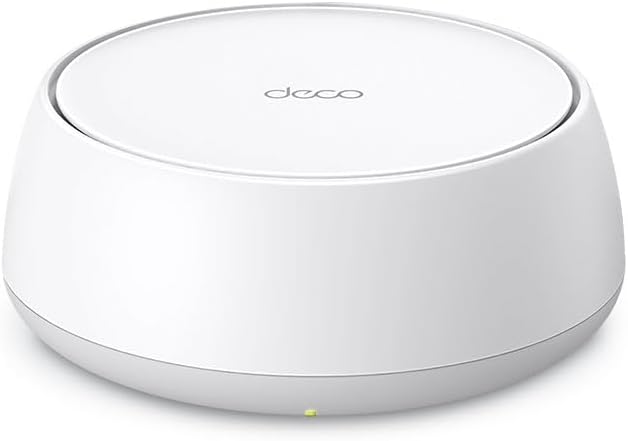
?Looking for a mesh Wi‑Fi system that actually fixes dead zones, supports dozens of devices, and is simple enough to set up in minutes?

Overview
The TP-Link Deco X55 AX3000 Mesh System is a whole‑home Wi‑Fi 6 solution designed to replace both your traditional router and any range extenders you might have scattered around. It aims to deliver seamless coverage up to 6,500 sq. ft. (with the 3‑pack) and offer faster, more reliable connections for streaming, gaming, and smart home devices.
What the Deco X55 Is
This product is a tri‑unit mesh kit (3‑pack) based on Wi‑Fi 6 (802.11ax) technology, giving you AX3000 aggregate speeds — approximately 2402 Mbps on 5 GHz (with HE160 support) and 574 Mbps on 2.4 GHz. Each Deco node has three Gigabit Ethernet ports, supports Ethernet backhaul, and can act as a router or access point, making the system flexible for many home network topologies.
Key Specs
Below is a quick breakdown of the main specs so you can see the numbers at a glance and compare them to your needs.
| Attribute | Detail |
|---|---|
| Model | TP‑Link Deco X55 AX3000 (3‑Pack) |
| Wi‑Fi Standard | Wi‑Fi 6 (802.11ax) |
| Aggregate Speed | AX3000 (2402 Mbps on 5 GHz + 574 Mbps on 2.4 GHz) |
| Coverage (3‑Pack) | Up to 6,500 sq. ft. |
| Devices Supported | Up to 150 devices |
| Ethernet Ports | 3 × Gigabit per unit (total 9 in 3‑pack) |
| Ethernet Backhaul | Supported |
| Special Features | HE160 support, OFDMA, MU‑MIMO, Beamforming, AI‑driven mesh |
| Security | TP‑Link HomeShield (basic features included) |
| App | Deco app for setup and management |
| ISP Compatibility | Works with Comcast, Charter, AT&T, Verizon, Xfinity, Spectrum, etc. (modem usually required) |

TP-Link Deco X55 AX3000 WiFi 6 Mesh System - Covers up to 6500 Sq.Ft, Replaces Wireless Router and Extender, 3 Gigabit Ports per Unit, Supports Ethernet Backhaul, Deco X55(3-Pack)
$149.99 In Stock
Performance
You’ll notice the performance improvements especially if you upgrade from older Wi‑Fi 5 gear or use range extenders that create multiple SSIDs and handoff problems. The X55 is designed to boost both raw throughput and real‑world responsiveness thanks to Wi‑Fi 6 efficiencies.
Range and Coverage
With three nodes, TP‑Link estimates coverage up to 6,500 sq. ft., which should cover multi‑level homes and large apartments if you place the units strategically. Keep in mind that actual coverage depends on building materials, interference, and placement — plaster, brick, and metal surfaces will reduce effective range.
Speed and Throughput
The 5 GHz band supports HE160, which lets compatible clients use wider channels for higher peak throughput — that’s where the 2402 Mbps number comes from in ideal conditions. In practical home use, expect much lower but still significantly improved speeds for high‑bandwidth tasks like 4K streaming, large file transfers, and cloud backups, especially when using Ethernet backhaul between nodes.
Handling Multiple Devices
Wi‑Fi 6 features like OFDMA and MU‑MIMO help the Deco X55 handle many devices more efficiently by improving airtime utilization and allowing the router to serve multiple devices at once. If you have smart home hubs, phones, laptops, and streaming boxes all connected, you’ll likely notice fewer stutters and more consistent latency under load.

Features
You’re getting more than just hardware numbers with the X55 — the software features, app controls, and security integrations are aimed at making network management less of a hassle for everyday users.
Wi‑Fi 6 Technologies (OFDMA, MU‑MIMO, HE160)
OFDMA improves efficiency by splitting channels into smaller subcarriers so many low‑data devices can share the airtime without hogging it, and MU‑MIMO continues to let multiple high‑bandwidth clients talk simultaneously. HE160 increases peak throughput for devices that support it, giving you better headroom for demanding applications.
Ports and Ethernet Backhaul
Each Deco node includes three Gigabit Ethernet ports, so you have the flexibility to wire a node to a switch, console, smart TV, or NAS, while still using the other ports for WAN or additional wired devices. Ethernet backhaul is supported and strongly recommended when you can run cables — it stabilizes inter‑node communication and preserves wireless capacity for client devices.
AI‑Driven Mesh and Roaming
The Deco system uses AI algorithms to learn the layout and device behavior in your home, optimizing which node serves which client for the best experience. That translates to smoother roaming across rooms: you get a single SSID and devices automatically move to the best node without you having to manually switch networks.
App and Management
The Deco app walks you through setup with clear visual guidance and offers features like device prioritization, basic QoS, and easy guest network creation. You can also manage settings remotely, pause internet access for devices, and apply parental controls from the app when you’re away.
TP‑Link HomeShield Security and Parental Controls
Basic HomeShield features are included at no extra cost and provide network security, parental controls, and QoS options; premium subscription tiers unlock additional protections and analytics. The built‑in tools are practical for family use — you can create user groups, set schedules, filter content, and monitor bandwidth usage.
Setup Experience
You’ll typically have the new Deco system on your network in under 20 minutes if you have a working modem and a basic understanding of home networking. TP‑Link focuses on a guided app experience that removes much of the guesswork for first‑time mesh installers.
Physical Setup and Placement Tips
Place one Deco near your modem or main internet entry point, and distribute the other two around the home where signal tends to drop off, keeping them within a sensible line of sight if possible. Avoid placing units in cabinets, on the floor, or behind large appliances — elevate them and allow a few feet of clearance for the best signal propagation.
Using the Deco App
The app will prompt you to create a TP‑Link account, detect the Deco units, and guide you through naming the network and assigning a password; it also helps with firmware updates and device labeling. The intuitive layout makes routine tasks like creating a guest network or setting parental controls quick and straightforward.
Firmware and Updates
TP‑Link pushes firmware updates through the app, which can include security patches, performance improvements, and new features; it’s a good idea to enable automatic updates so you don’t have to remember manual checks. Firmware stability is generally solid for Deco devices, but you should plan occasional reboots if you encounter odd connection behavior.

Real‑World Use Cases
Think about how you use your network and whether the Deco X55’s strengths align with those needs — it’s particularly strong for mixed environments with many devices and for homes that previously suffered from dead spots.
Streaming and 4K Video
If you watch 4K content on multiple TVs, the improved throughput and QoS features will keep buffering to a minimum and let multiple streams coexist without a fight. The ability to place a node near an entertainment center and wire it to a smart TV or streaming box helps deliver consistent bandwidth to each streaming device.
Gaming and Low Latency Needs
Competitive gaming benefits from stable ping and consistent round‑trip times, and while mesh networks can sometimes add a hop, the Deco X55’s intelligent routing and optional wired backhaul minimize latency penalties. Prioritize gaming devices in the app or connect them via Ethernet to a nearby Deco to achieve the best performance.
Smart Home and IoT Devices
Homes with lots of IoT sensors, bulbs, cameras, and smart assistants are a good match for the X55 because OFDMA helps manage many low‑data connections efficiently. You can also isolate IoT devices on a guest SSID if you want a security boundary between cameras and your main work devices.
Comparison and Alternatives
It helps to know what the X55 does relative to other options so you can match features to the price and your specific home environment. There are cheaper mesh kits and more premium systems with tri‑band radios or advanced firmware, so the X55 mostly targets value‑minded buyers who want Wi‑Fi 6 benefits without a premium price.
Deco X55 vs Other Deco Models (X20, X60)
Compared with the Deco X20, the X55 has higher aggregate throughput and HE160 support, giving it an edge for faster clients. Against the X60, the differences are smaller — the X60 may focus on slightly different band configurations or throughput balance — but the X55 competes well on price/performance for most homes.
Deco X55 vs Competitors (Eero, Google Nest, Orbi)
Compared to Eero and Google Nest systems, the TP‑Link Deco often gives you more Ethernet ports per unit and a richer set of configuration options in the app. Netgear Orbi units can offer higher peak performance in some cases (especially tri‑band models), but they’re usually more expensive; the X55 sits in a balanced middle ground of features, coverage, and cost.
| Feature | Deco X55 (3‑Pack) | Google Nest Wifi Pro | Eero 6+ | Netgear Orbi (RBK) |
|---|---|---|---|---|
| Wi‑Fi Standard | Wi‑Fi 6 (AX) | Wi‑Fi 6E/6 depending model | Wi‑Fi 6 | Wi‑Fi 6 (some tri‑band Orbi are AX) |
| Ethernet Ports per Node | 3 × Gigabit | 2 × (some models) | 2 × | 2–4 depending model |
| Coverage (typical) | Up to 6,500 sq. ft. | Varies | Varies | Often larger for premium SKUs |
| Best For | Value + features | Simplicity + ecosystem | Budget Wi‑Fi 6 | High performance / large homes |
| Price Position | Mid | Mid | Lower-mid | Mid to high |

Pros and Cons
You’ll want a clear list of strengths and weaknesses to decide if this system fits your home. Below are the most important tradeoffs to consider.
Pros:
- Strong coverage for a 3‑pack and reliable mesh handoff when configured properly.
- Wi‑Fi 6 benefits like OFDMA and MU‑MIMO that improve efficiency with many devices.
- Three Gigabit LAN ports per node give you more wired connectivity options than many competitors.
- Ethernet backhaul support provides a performance boost when you can run cables.
- HomeShield basic security included, and easy app‑driven setup.
Cons:
- Peak throughput is good but not class‑leading compared with high‑end tri‑band systems.
- Some advanced users may find the Deco app options less granular than custom router firmware.
- Premium security features require a subscription to HomeShield Pro.
- Realized coverage depends a lot on home layout and construction materials.
Troubleshooting Common Issues
If something goes wrong, most issues have straightforward fixes that you can attempt from the app or with a little rearrangement. Below are common problems and practical steps you can take.
Slow Speeds
If your speeds are significantly lower than expected, first confirm your internet plan and test speed directly at the modem with a wired laptop to isolate the ISP. Then check the Deco app for node placement, enable Ethernet backhaul if possible, and verify firmware is up‑to‑date; also consider channel interference from neighboring networks.
Devices Not Roaming
If a device clings to a distant node and refuses to switch, try moving the device closer to the preferred node to trigger reconnection, or reboot the device so it resamples the environment. You can also enable “AP Steering” features in the app if available and ensure your mesh units have good inter‑node signal strength.
App Connectivity Problems
If the Deco app loses connection to your system, restart the app and your phone, and confirm your phone is on the same home network during initial setup and routine changes. Rebooting the primary Deco and the modem can help reestablish a proper WAN link; if that fails, factory reset the Deco and follow the guided setup again.
Tips to Get the Best from Deco X55
Small tweaks can make a big difference to your experience. Apply these practical tips to make sure the system runs optimally.
- Place nodes on open shelves or counters roughly halfway between the modem and the dead zone you want to cover; avoid walls and metallic objects near each node.
- Use Ethernet backhaul when possible to preserve wireless capacity and reduce latency; use the Deco’s ports to chain to a switch if you need more wired connections.
- Label devices in the Deco app to quickly identify bandwidth hogs and set up device prioritization for gaming or streaming devices.
- Schedule automatic firmware updates and periodically reboot nodes to keep the network fresh.
- Isolate guest and IoT devices using separate SSIDs or VLAN-like features if security of smart devices is a concern.
- Test speeds near each node using a mobile app like Speedtest to verify performance and adjust placement as needed.
Who Should Buy It?
You should consider the Deco X55 if you want modern Wi‑Fi 6 performance across a large home without paying premium prices for tri‑band flagship systems. It’s especially strong for families with many devices, people who want fast, reliable streaming across multiple rooms, and anyone who prefers a guided, app‑driven setup over wrestling with complex router settings.
Frequently Asked Questions
These are some of the questions people most often ask about the Deco X55, with simple answers you can act on.
Q: Can any Deco X55 unit act as the router?
A: Yes, any Deco node can be configured to act as the main router, and the others will join as satellite nodes. That flexibility helps when your modem location changes or you want a particular node to handle WAN duties.
Q: Do I need a modem to use this system?
A: In most home setups you’ll need a modem or a modem/router combo provided by your ISP to get internet access; the Deco replaces the router function, but not the modem. If your ISP gives you a gateway, you can set the Deco to Access Point mode to work behind it, or configure the gateway to bridge mode and let Deco handle routing.
Q: Is the Deco X55 suitable for gaming?
A: Yes, it’s suitable for casual and moderately competitive gaming, especially if you use Ethernet backhaul or wire the gaming console directly to a Deco node. For ultra‑competitive setups where every millisecond counts, a wired connection remains the gold standard.
Q: How many devices can it support?
A: TP‑Link claims support for up to 150 devices for the 3‑pack, but real limits will vary based on device types and traffic patterns. Wi‑Fi 6 technologies help manage many concurrent clients better, but heavy simultaneous streaming or transfers will still consume bandwidth.
Q: Does it support WPA3?
A: Many Deco models support modern encryption standards including WPA3, but check the app or product firmware notes for the current support status and enable it if your devices are compatible. WPA3 provides improved security over WPA2, and is worth enabling when possible.
Final Verdict
If you want a friendly, capable Wi‑Fi 6 mesh system that’s easy to set up and provides solid coverage and features for family homes, the TP‑Link Deco X55 AX3000 (3‑Pack) is a very competitive choice. It balances good throughput, plentiful Ethernet ports, and useful software features at a price point that makes upgrading to Wi‑Fi 6 practical for many households.
If you’d like, I can help you pick placement locations for the nodes based on a floor plan, suggest whether a 2‑pack might be adequate for your space, or compare the Deco X55 more specifically against a model you already own. Which would you prefer?

Disclosure: As an Amazon Associate, I earn from qualifying purchases.